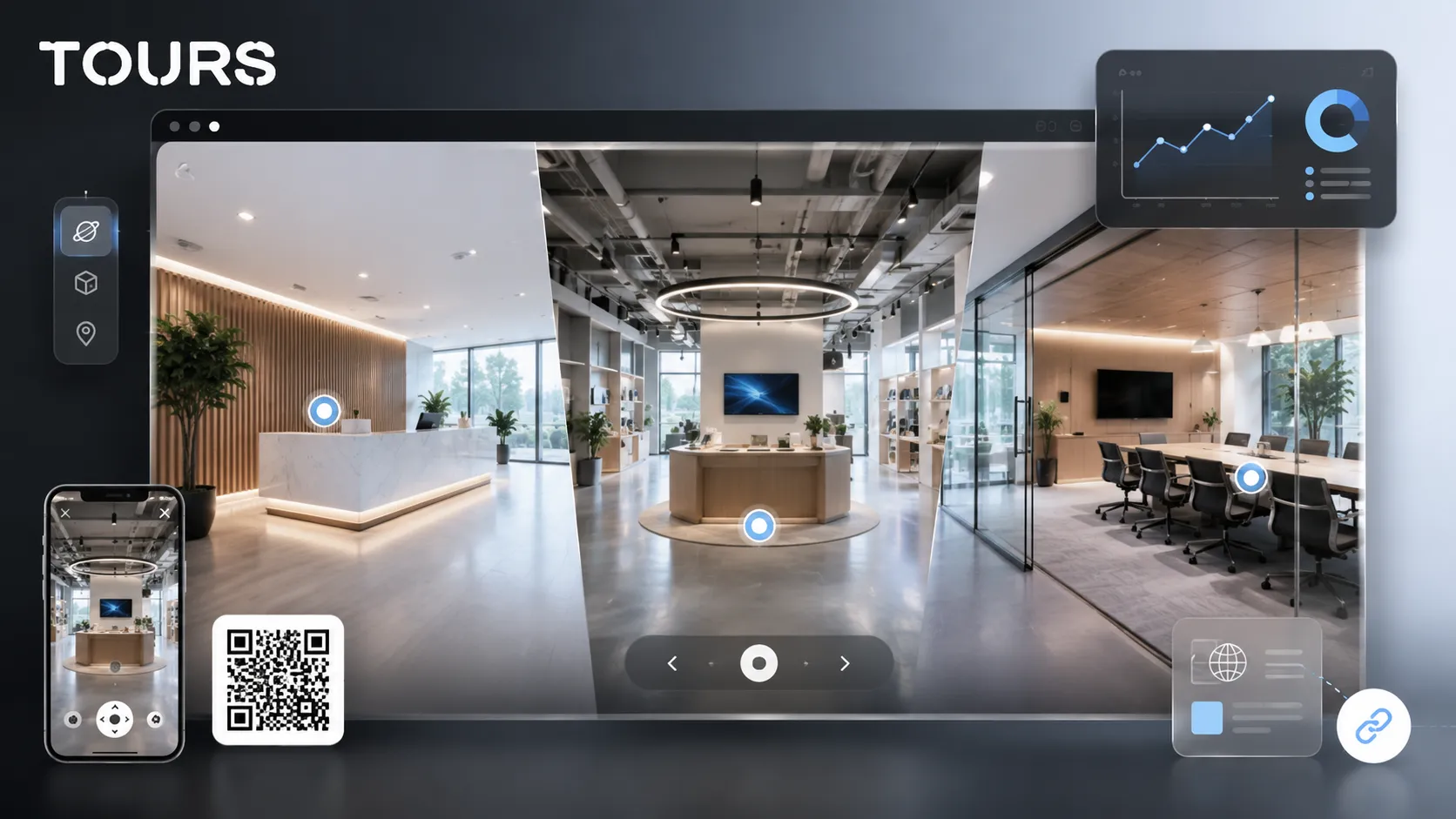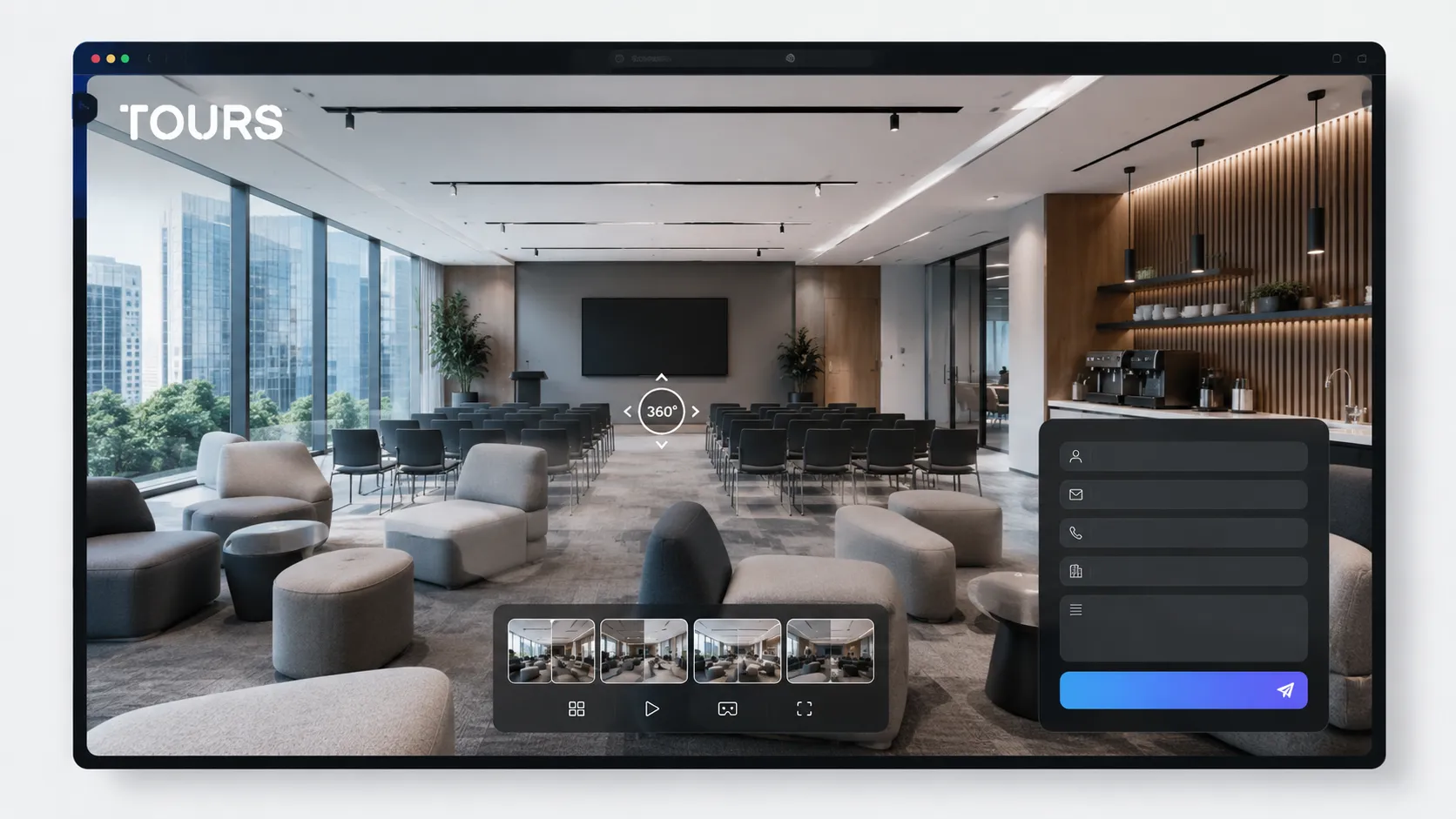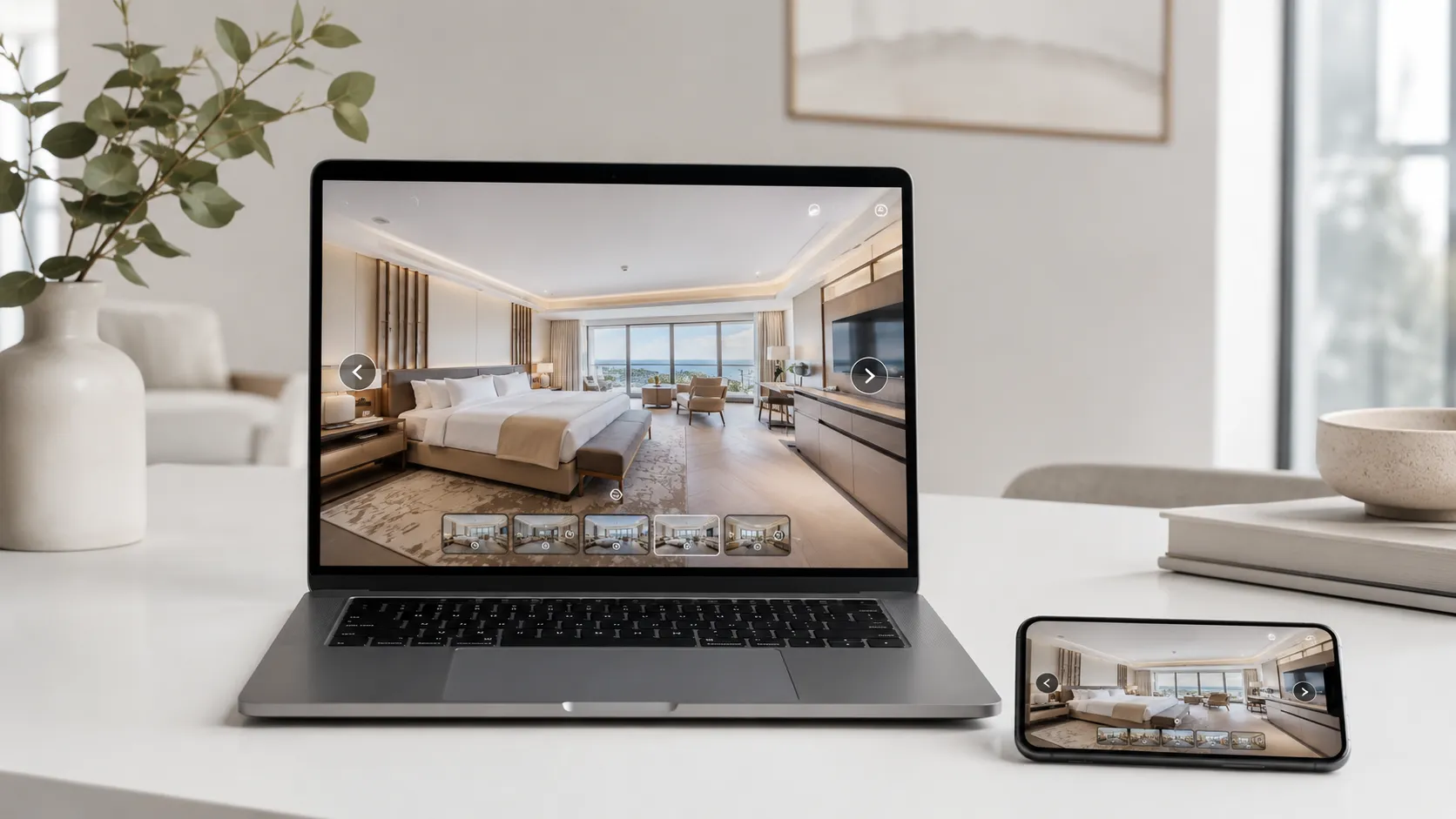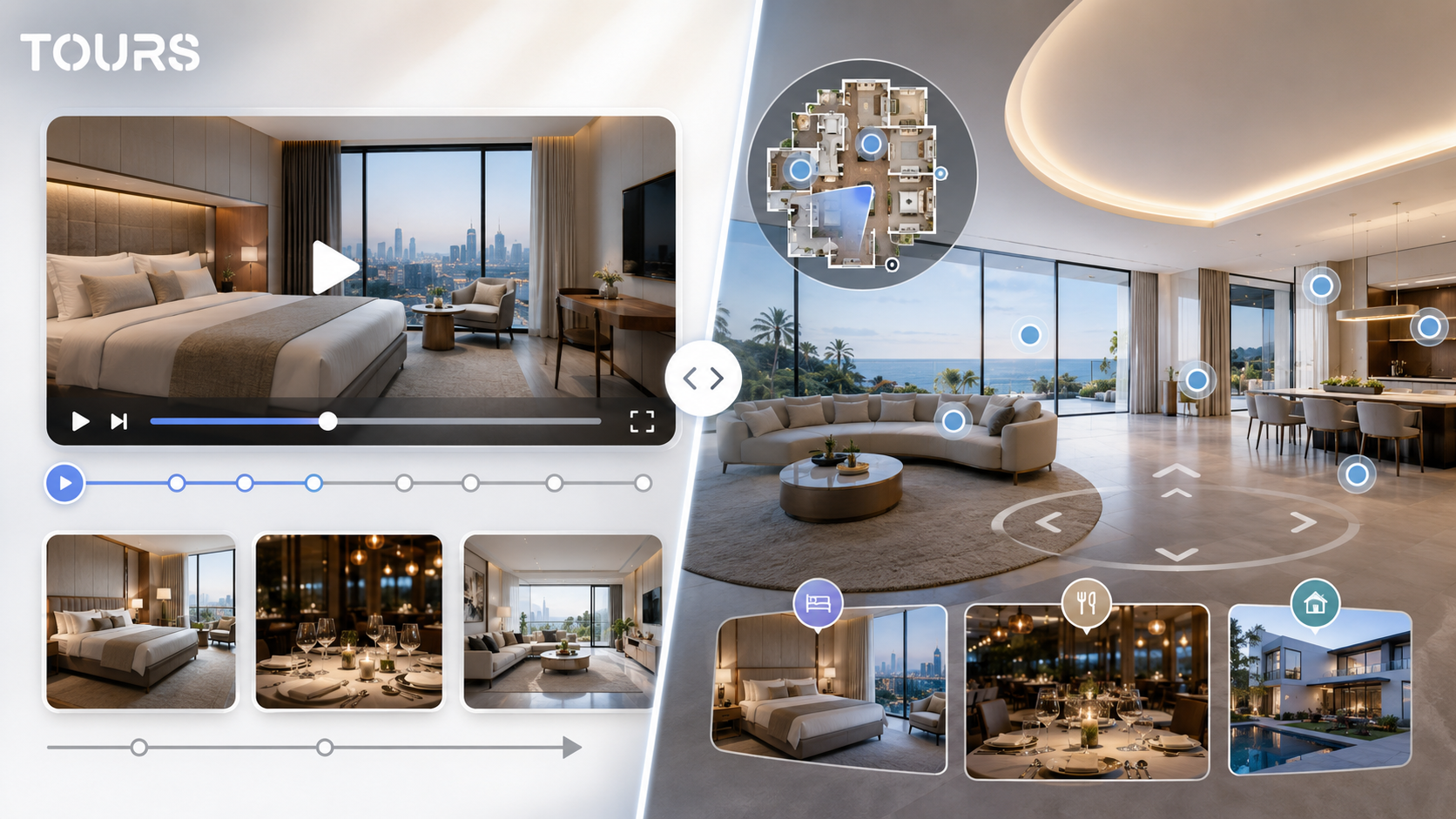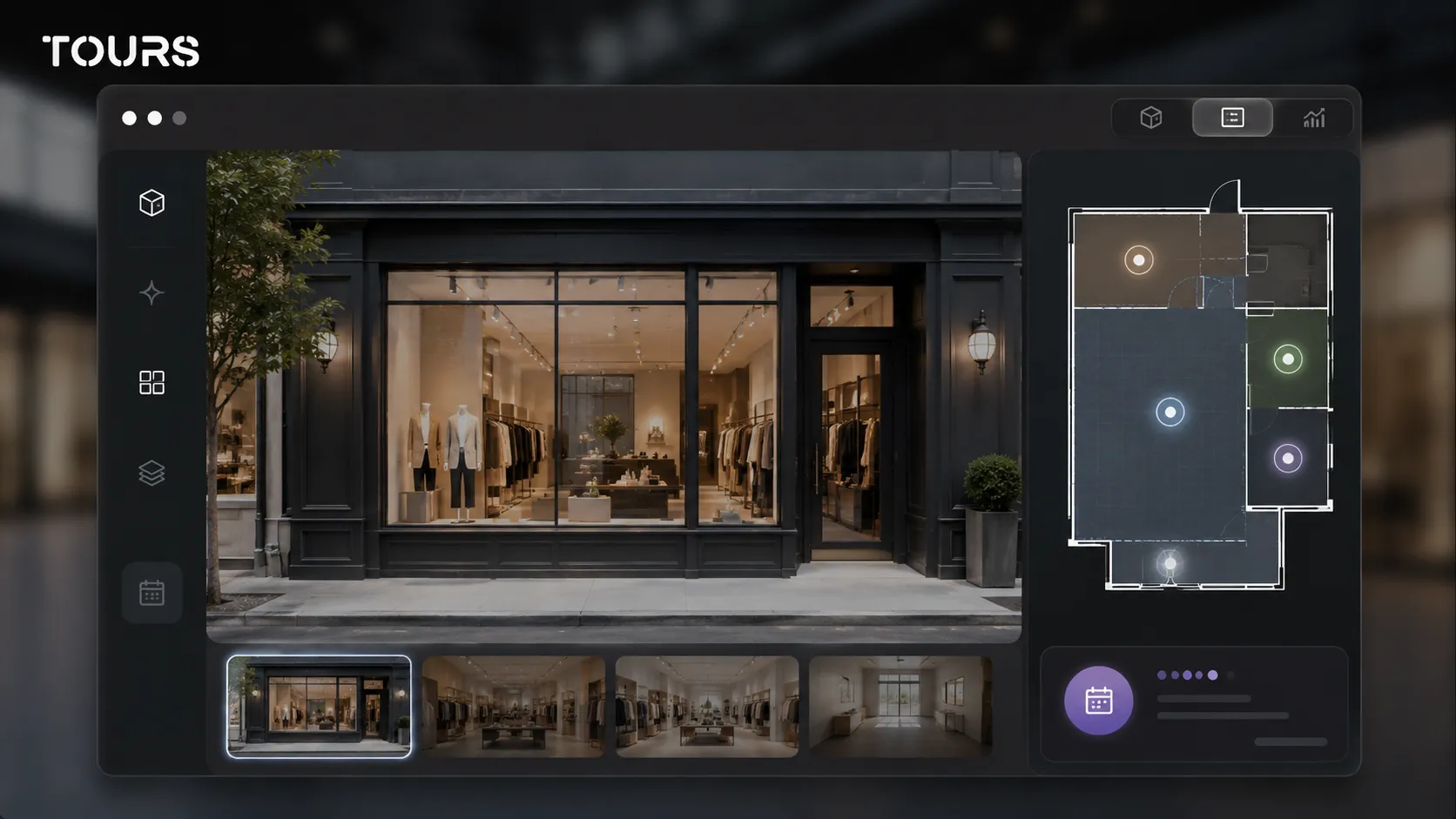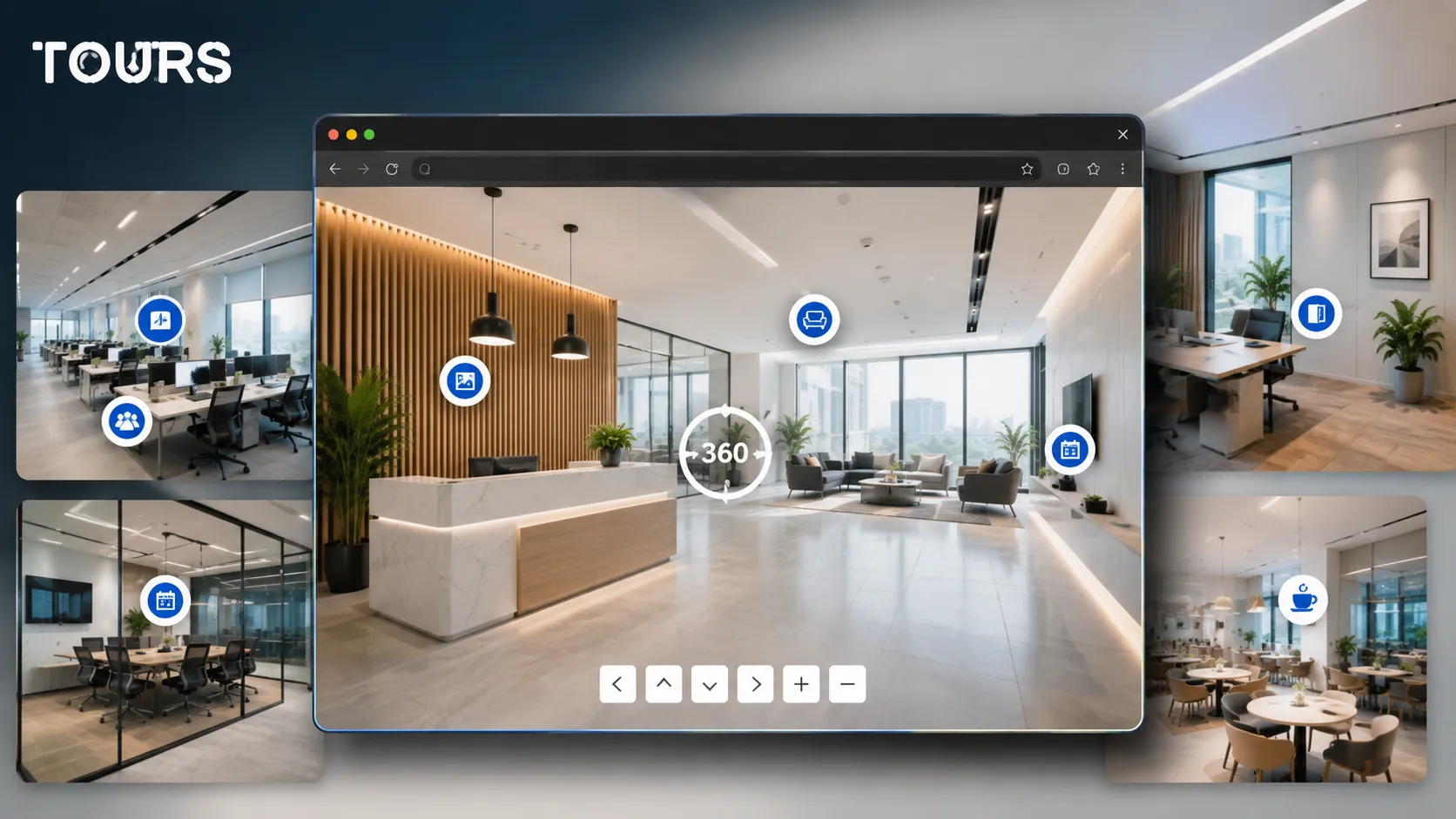

An office virtual tour is an interactive 360° presentation that helps a tenant, company or coworking customer understand the space before an in-person viewing. Instead of showing only separate photos, the tour explains the reception area, access, offices, meeting rooms, amenities and the real path through the building.
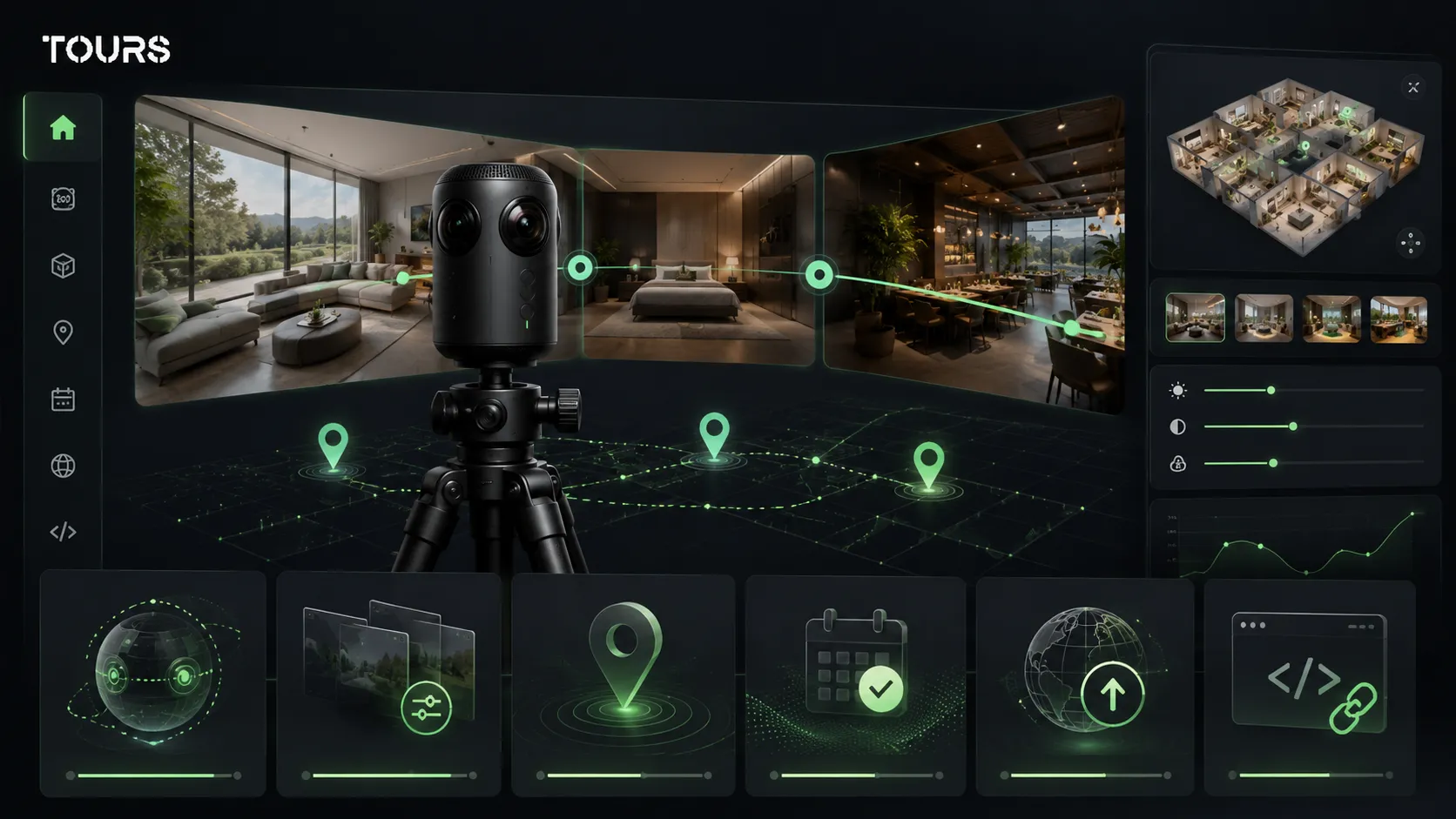
Tours is a SaaS platform for 360° virtual tours created in the browser, with interactive points, usage statistics and booking options. For offices, it helps the leasing team turn a visual presentation into a more contextual viewing request.
In short
- An office virtual tour reduces poorly matched viewings because it shows the layout, access and atmosphere of the space in advance.
- For coworking, the tour should explain the difference between private offices, shared areas, meeting rooms and membership options.
- For an office building, the 360° presentation should include reception, access, parking, elevators, shared areas and available floors.
- Interactive points can clarify square footage, capacity, amenities, lease terms and the next steps for a viewing.
- In Tours, requests or bookings can be connected to the entire tour, to scenes, to scene groups or to interactive points with internal tags.
Why does an office virtual tour matter before a viewing?
An office virtual tour matters because the decision to schedule a viewing is rarely based on square footage and rent alone. Companies want to see whether the space supports their team, meetings, recruiting, daily access and the image they present to clients.
The office market is more selective, and good spaces need to be explained quickly. Office market reports such as CBRE's Q1 2026 figures track leasing volume, vacancy and prime rent, which shows why clear online presentation helps owners and consultants qualify conversations more effectively.[1]Source In that kind of context, a clear online presentation can help the owner or advisor focus discussions on better-qualified prospects.
For an owner, the tour does not replace the in-person viewing. Its role is to reduce repetitive questions, show the differences between similar spaces and help decision-makers arrive at the viewing with a clearer list of requirements.
| Without a virtual tour | With an office virtual tour |
|---|---|
| The client sees separate photos and asks for many details about access, layout and amenities. | The client follows the path from reception to the available space and understands faster how the office works. |
| Viewings can include companies looking for a different configuration or fit-out level. | Viewings are better filtered because the tour shows the atmosphere, surfaces and key areas from the start. |
| The sales team repeats the same explanations in every call or email. | Interactive points answer common questions and leave the commercial conversation for specific details. |
| The final decision-maker receives indirect descriptions from the person who saw the space. | The final decision-maker can view the 360° presentation before approving the next step. |
What spaces should you show in an office or coworking space?
In an office or coworking space, show the areas that change the decision: the entrance, reception, available offices, meeting rooms, shared areas, kitchen, phone booths, parking and access. You do not need every corner. You need a path that explains daily use.
For a traditional office space, start with the exterior or building entrance, then continue with reception, elevators, the floor lobby, the actual office area and shared zones. If there are several size options, use separate scenes or scene groups for each floor, wing or available unit.
For coworking, clarity is even more important because customers compare flexibility with the stability of a dedicated office. Colliers notes that flexible offices remain relevant as companies evaluate coworking, cost, flexibility and new ways of working across changing office markets.[2]Source
- For offices for lease: reception, access, floor plan, open areas, enclosed offices, meeting rooms, restrooms and break areas.
- For coworking: flexible desks, private offices, phone booths, meeting rooms, lounge areas, kitchen, events, community spaces and after-hours access.
- For office buildings: lobby, turnstiles, elevators, parking, changing rooms, ground-floor retail, terrace, bike facilities and shared areas.
- For corporate headquarters: branded reception, work areas, client zones, training rooms, collaboration areas and interview spaces.
How do you help the tenant understand the workday flow?
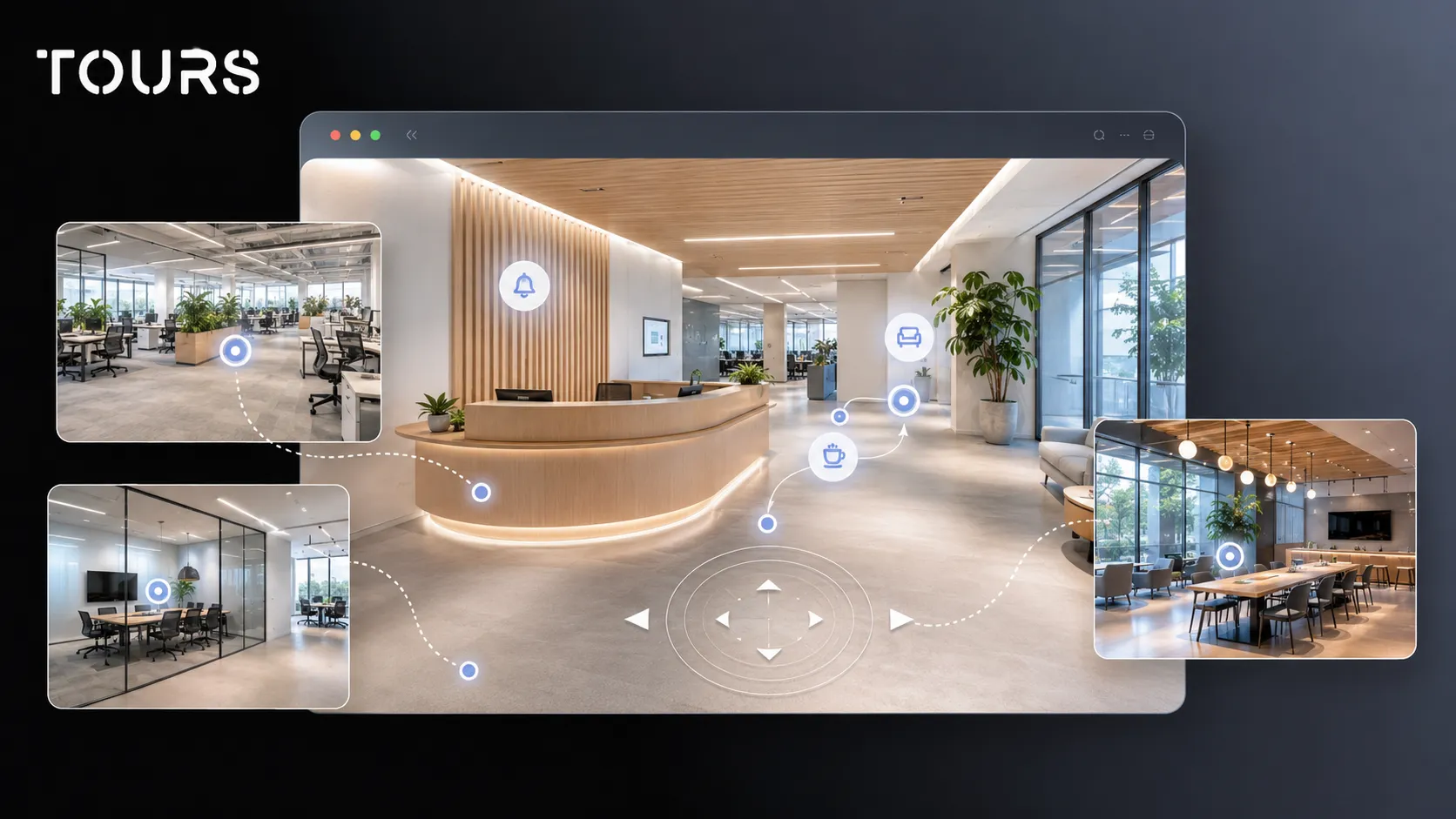
The tenant understands the workday flow when the tour shows how people arrive, how they enter, where they work, where they meet clients and where they take breaks. For offices, scene order is just as important as the image of each room.
Think of the tour as a guided visit for a company that does not have time to guess. An entrance scene answers where employees arrive. A workspace scene shows density and light. A meeting room scene shows how a client or partner could be welcomed.
In hybrid offices, the space needs to justify the trip to the workplace through collaboration and experience. CBRE notes in its Global Workplace & Occupancy Insights 2026 series that office utilization rose to 53%, while 68% of respondents cited interaction with colleagues as the main reason for being in the office.[3]Source That is why the tour should show not only desks, but also the reasons people would come there.
- Show the entrance and wayfinding in the building before the actual office space.
- Separate focused work areas from collaboration areas.
- Present meeting rooms with size and usage scenarios.
- Explain the areas that support team culture: the lounge, kitchen, terrace or internal event spaces.
- Do not overload the beginning of the tour with technical details; place leasing information in interactive points.
How do you use interactive points for leasing information?
Interactive points are useful when they turn the presentation from a simple 360° view into a decision tool. In an office, they can explain square footage, capacity, furniture, amenities, availability, lease terms or the next commercial step.
Instead of putting every detail on the page, let the visitor discover it in context. For example, a point on a meeting room can show capacity and equipment. A point near the access area can explain reception hours. A point on a private office can lead to a quote request or appointment.
| Tour area | Useful information in an interactive point | Possible action |
|---|---|---|
| Reception and lobby | Access, hours, security, visitor wayfinding | Ask about a viewing |
| Available office | Square footage, estimated workstation count, fit-out level | Request a quote for the space |
| Meeting room | Capacity, equipment, usage rules | Book or ask for details |
| Coworking | Membership types, included areas, flexible access | Schedule a visit |
| Parking | Available spaces, access, bike facilities | Ask for logistics details |
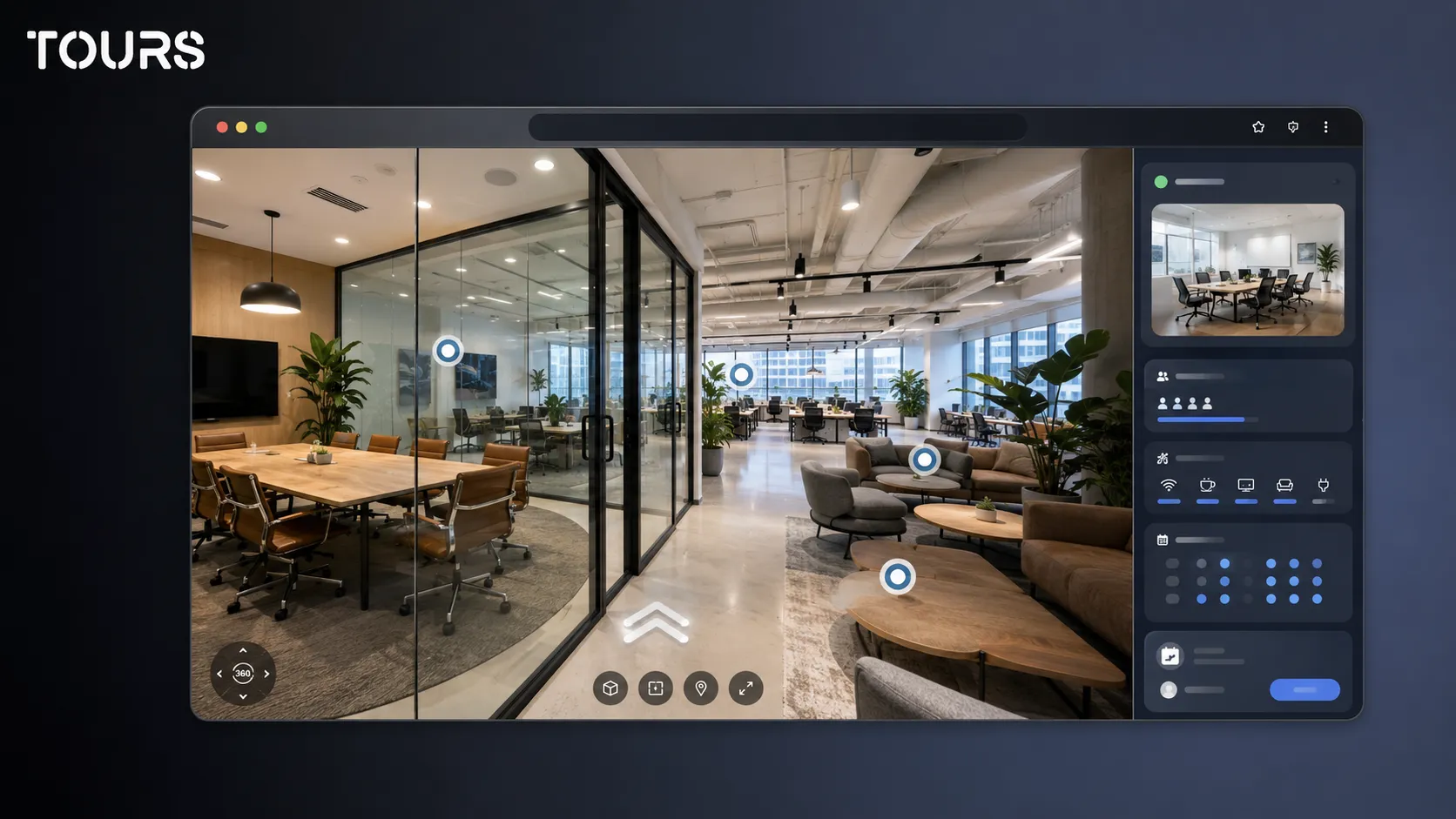
How are viewing requests or bookings connected in Tours?
In Tours, viewing requests or bookings can be connected at the right level for your space: the entire tour, a scene, a scene group or interactive points with internal tags. This lets the visitor send a request from the exact context that interested them.
For a building with several spaces, you can group scenes by floor, area or available unit. For coworking, you can have interactive points for private offices, meeting rooms or guided tours. Interactive points with the same tag can use the same calendar, while different tags can have separate calendars.
If a booking setup is connected to the entire tour and enabled, the tour can show a global scheduling button. If it is connected to an interactive point, the booking window opens when the visitor clicks that point. For office viewings, this difference helps separate general building inquiries from interest in a specific space.
- Tour level: good for a general viewing request for the building or coworking center.
- Scene level: useful when each scene represents an available space or a clear area.
- Scene group level: suitable for a floor, a complete office or a package of spaces presented together.
- Interactive point level: good for private offices, meeting rooms, shared areas or contextual requests.
You can use Tours as the link between the presentation and the leasing conversation, not as a replacement for your CRM, lease contracts or internal team processes. The goal is to receive more contextual requests and understand which space attracted attention.
How do you create the 360° office presentation in Tours?
A 360° office presentation in Tours starts with a simple tour, then adds scenes, navigation, groups and interactive points. For offices, the key is to prepare the path and information before uploading every image.
After you create an account on getours.app and open the app, go to the My Tours page and start a new tour. In the setup window, complete the tour name and category, then optionally add the location, price or tags. In the next step, upload the first 360° scene and give it a clear name.
After you continue, the 360° editor opens. There you can add extra scenes, navigation points, information, images, video, external links and groups. If certain points should later be connected to requests or bookings, you can mark them with internal tags so Booking Manager can connect them correctly.
Publishing stays controlled. When you click Publish, you choose the visibility option for the tour, then the presentation waits for approval from a Tours moderator before it becomes publicly active. This step helps maintain the quality of published content.
How do you publish the office building presentation on your website?
The office building presentation should be published where the decision happens: on the property page, on available-space pages, in sales campaigns and in materials sent to tenants. The tour is most useful when it is not hidden on a secondary page.
On your website, you can place the tour next to the leasing information: available square footage, location, certifications, amenities, transit access and contact form. If you have several spaces, each page can include the relevant tour or a different starting scene.
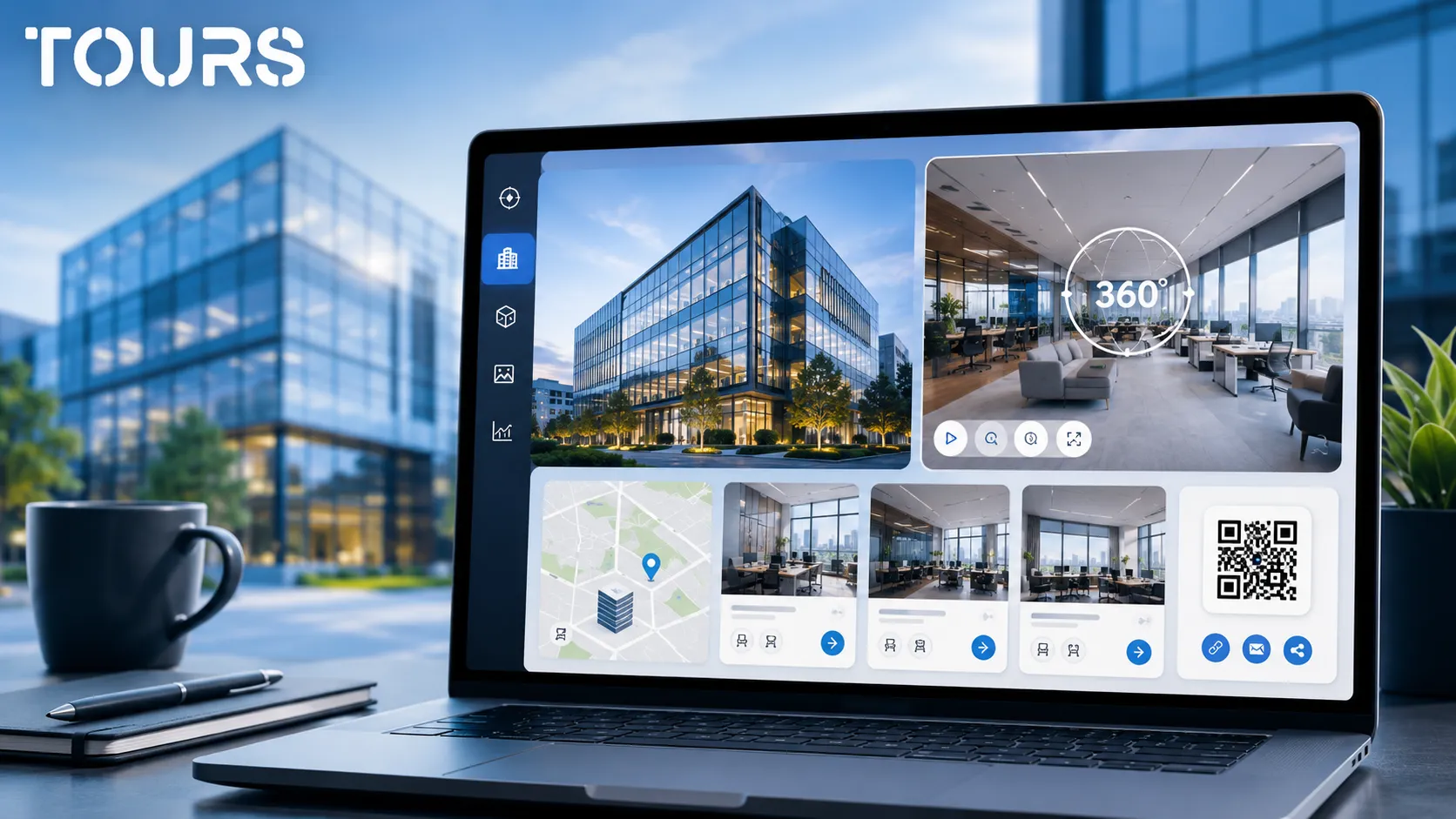
In Tours, the tour can be shared through a link, website integration code and a QR code. For office buildings, the website integration code is useful on the presentation page, while the QR code can be used in brochures, at reception or in materials sent after a conversation with an advisor.
What should you measure after the tour goes live?
After launch, measure whether the tour clarifies interest and helps the leasing team. For offices, the view count is not the only thing that matters. Also look at visited scenes, opened points, session length and requests sent from specific areas.
Usage statistics in Tours are included in all plans and help you see which spaces attract attention. If visitors often enter the coworking area but do not click the viewing request, the membership may need to be explained more clearly. If the parking scene gets many visits, make the logistics information more visible.
- Which scenes are visited most often.
- Where visitors pause and how long they stay in the tour.
- Which interactive points receive the most clicks.
- Which spaces generate viewing requests or questions.
- Which information is missing from the tour based on questions received by the leasing team.
For a coworking operator, this data can show whether interest goes toward private offices, flexible memberships or meeting rooms. For a building owner, it can indicate which floors or amenities deserve stronger promotion in campaigns.
Sources
Studies and reports cited in this article
All sources are checked and publicly available.
- Office market indicators for Q1 2026reportCBRE RomaniaReport on office leasing demand, vacancy, prime rents and market movement.
- Flexible offices in the current real estate marketreportColliersAnalysis of coworking, flexible offices, costs and changing work patterns in office markets.
- Global workplace occupancy insights for 2026studyCBREResearch series on hybrid offices, space utilization, collaboration and employee experience.
We carefully select trusted sources to keep the content relevant and up to date.
Frequently Asked Questions
What is an office virtual tour?
An office virtual tour is an interactive 360° presentation of a workspace, office building or coworking space. It lets the visitor explore the reception area, offices, meeting rooms, shared areas and amenities online before requesting a quote or an in-person viewing.
When is an office virtual tour worth using for leased space?
It is worth using when the space has several areas that are hard to explain through photos, when you receive many repetitive questions or when you want to qualify viewings better. The tour is especially useful for buildings with available floors, flexible spaces, coworking, private offices and headquarters that need to be shown to multiple decision-makers.
Is a virtual tour suitable for coworking?
Yes. A coworking virtual tour is suitable because customers want to see the atmosphere, community, shared areas and the difference between membership options. You can present private offices, flexible desks, meeting rooms, phone booths, lounge areas and event spaces, then connect important points to requests or appointments.
What should a 360° presentation of an office building include?
A 360° presentation of an office building should include the exterior, lobby, reception, access, elevators, available floors, shared areas, parking and employee amenities. If several spaces are available, it is clearer to organize them into scene groups or dedicated pages.
Can the tour replace an in-person viewing?
Usually, no. For offices, the virtual tour reduces poorly matched viewings and helps the decision-maker understand the space before the visit, but an in-person viewing remains important for final details. The tour's role is to shorten the process, clarify expectations and make the meeting more productive.
Can I connect viewing requests directly from the tour?
Yes. In Tours, you can connect requests or bookings to the entire tour, to scenes, to scene groups or to interactive points with internal tags. For offices, this allows general requests for the building or specific requests for a floor, private office, meeting room or coworking area.
Does every interactive point need a separate calendar?
No. Interactive points can work independently, but they can also share the same availability through the same internal tag. For example, several points for guided tours can use the same calendar, while a meeting room or private office can have a separate setup.
What is the difference between photos and a 360° office tour?
Photos show selected frames, while a 360° tour shows the relationship between spaces. For offices, that matters because the tenant wants to understand the path, layout, light, distance to meeting rooms and how the team would use the space every day.
Can I use the same tour on my website, in email and in sales materials?
Yes. A tour created in Tours can be published on a website with website integration code, sent by link and shared through a QR code. For office space leasing, the same tour can be used in sales emails, digital brochures, campaigns and follow-up after conversations with potential tenants.
How often should I update an office tour?
Update the tour when the fit-out, space availability, furniture, access or amenities change. For coworking and buildings with rotating available spaces, it is useful to separate permanent scenes from commercial ones so you can update only the areas that change frequently.
If you want to present offices, coworking spaces or an office building with fewer repeated explanations, you can create a tour in Tours and test it for 30 days without a card. Start with the main path, then add interactive points, viewing requests and usage statistics as you learn what visitors care about.