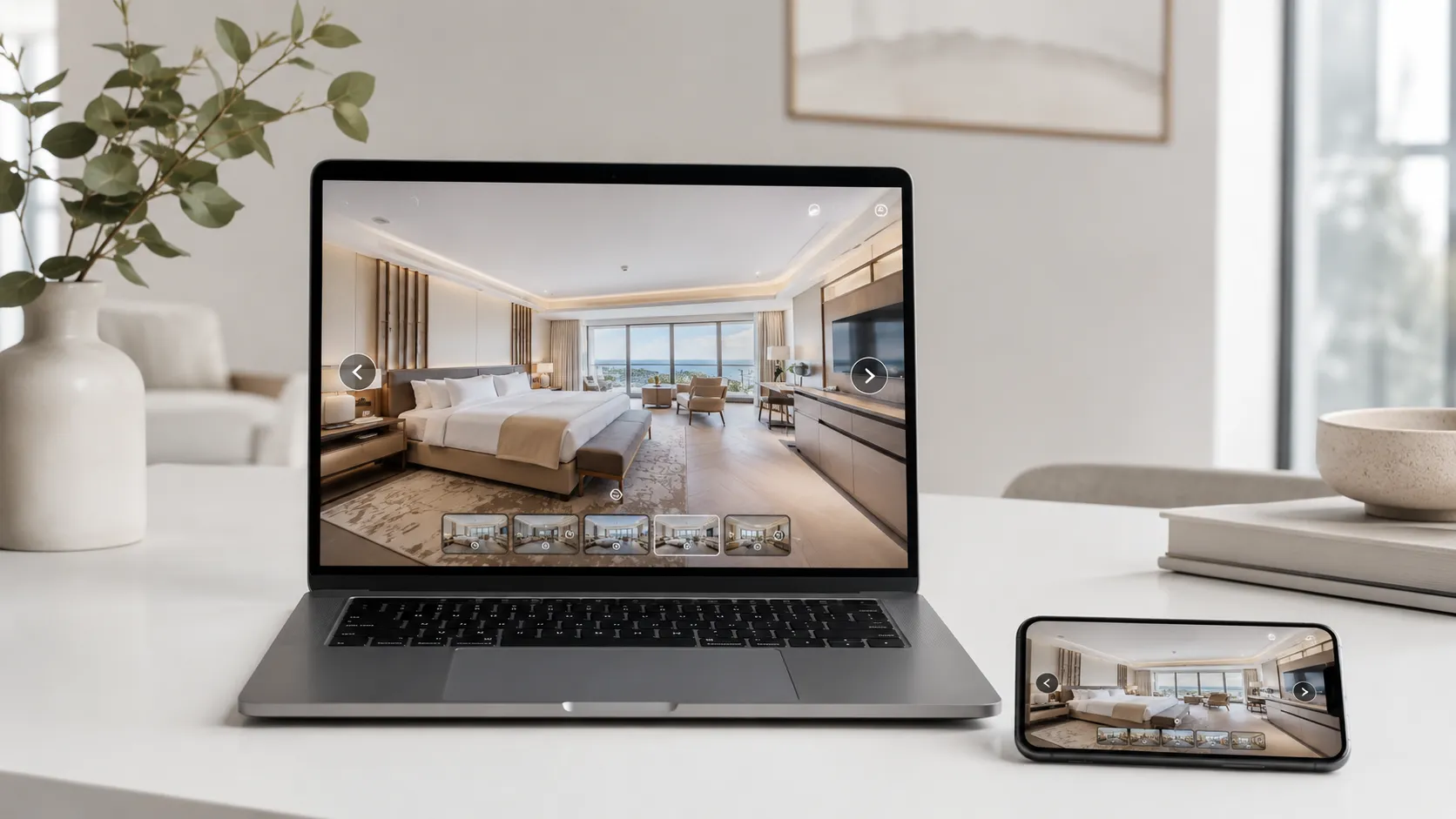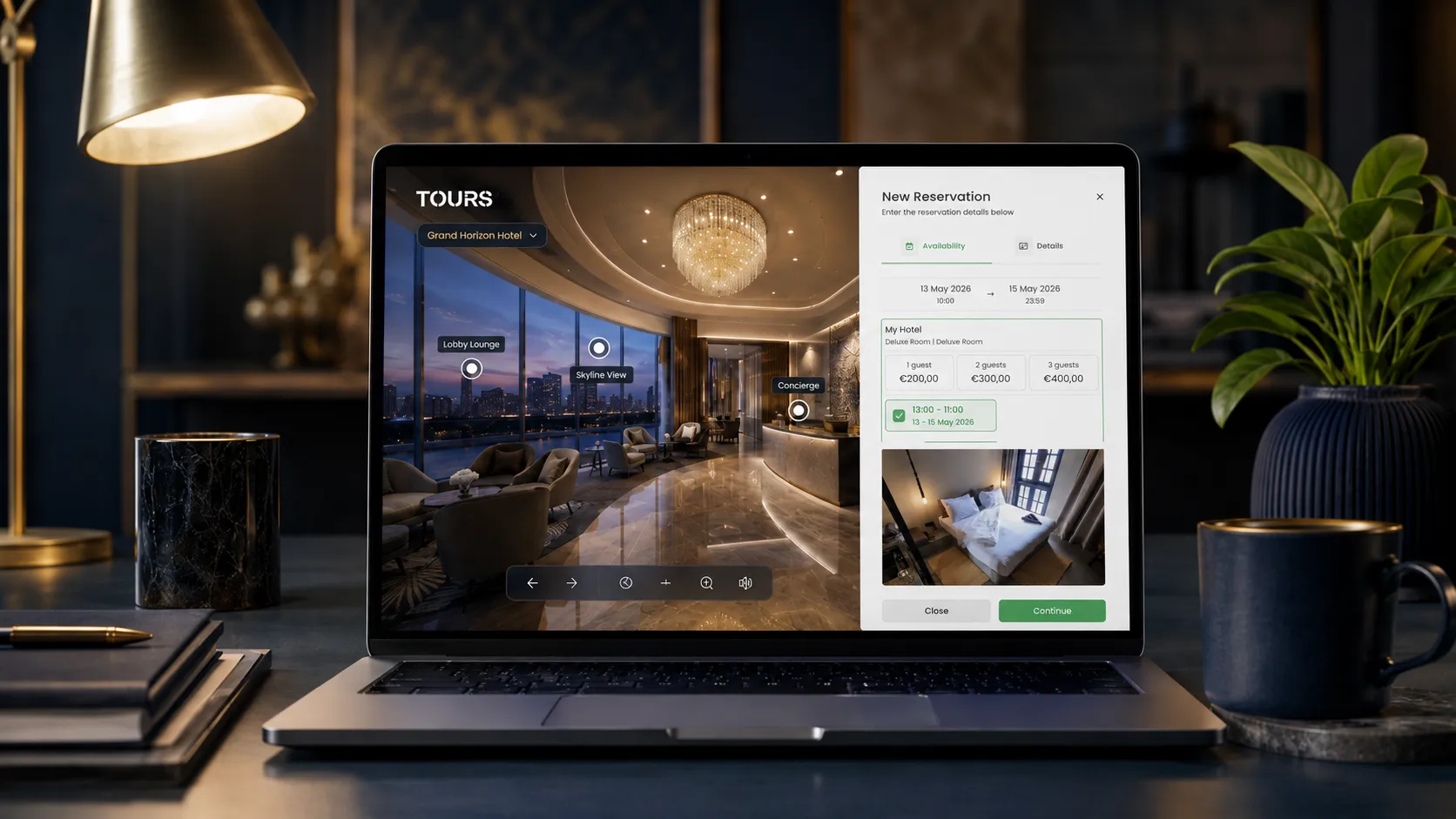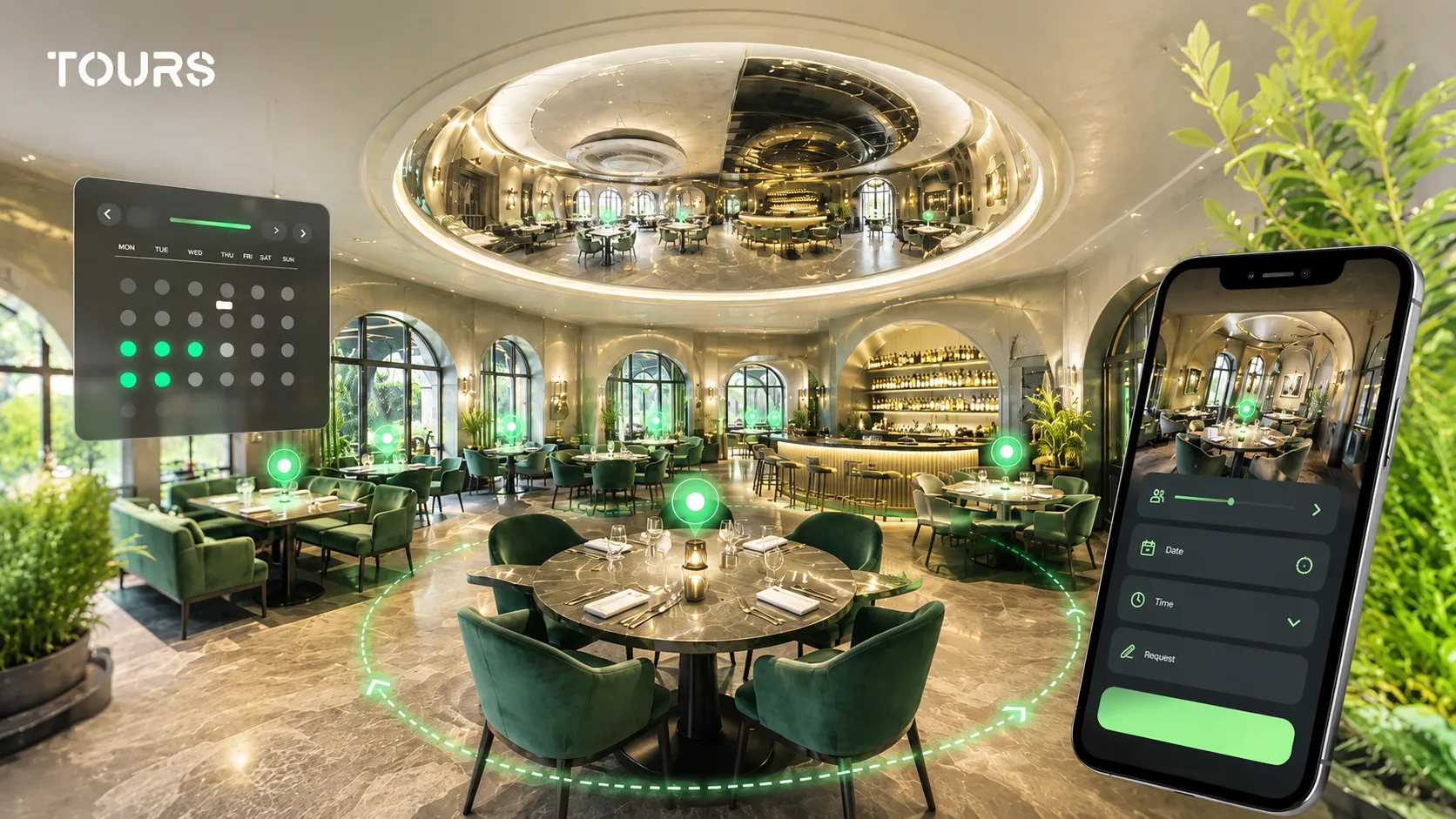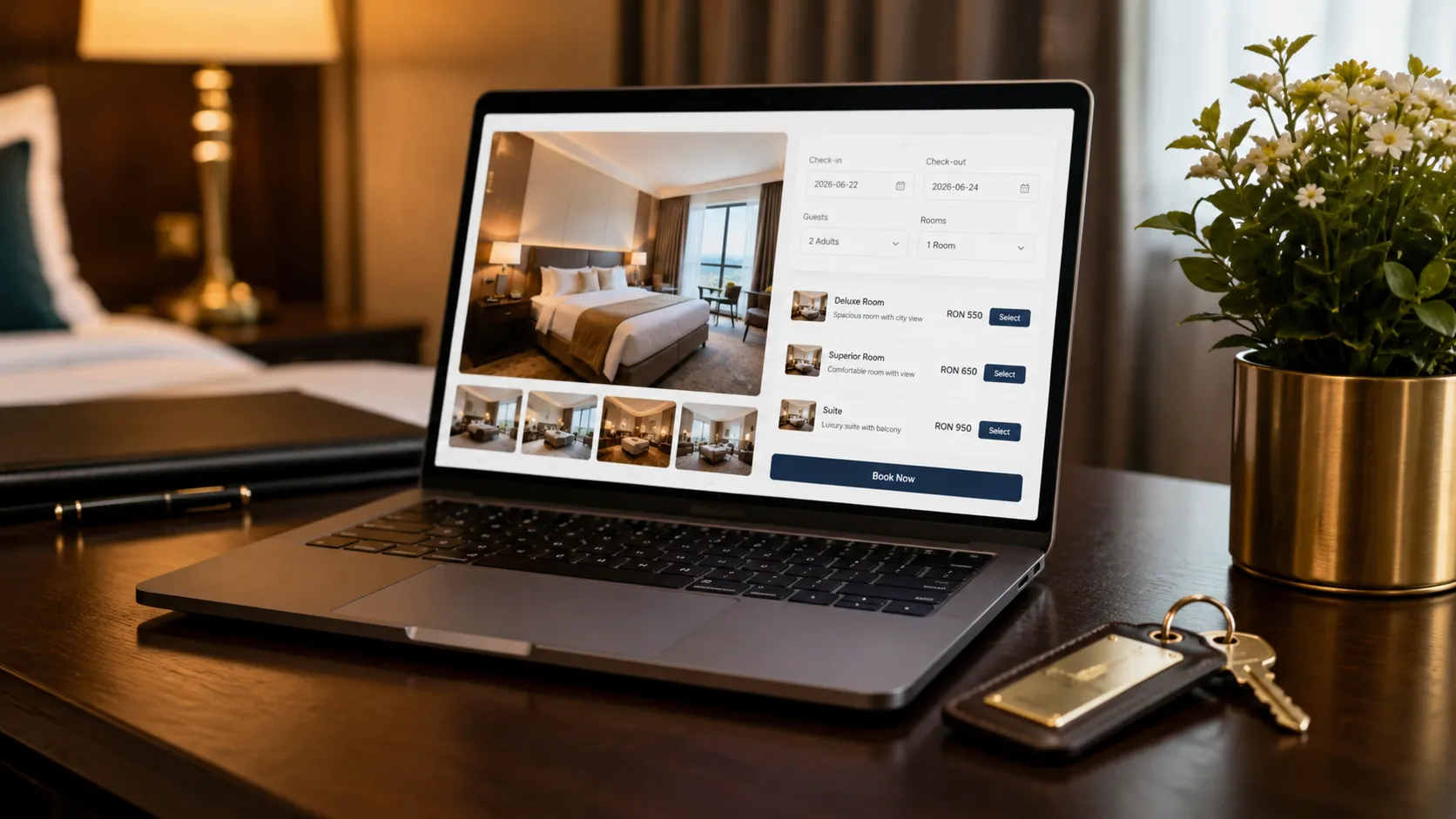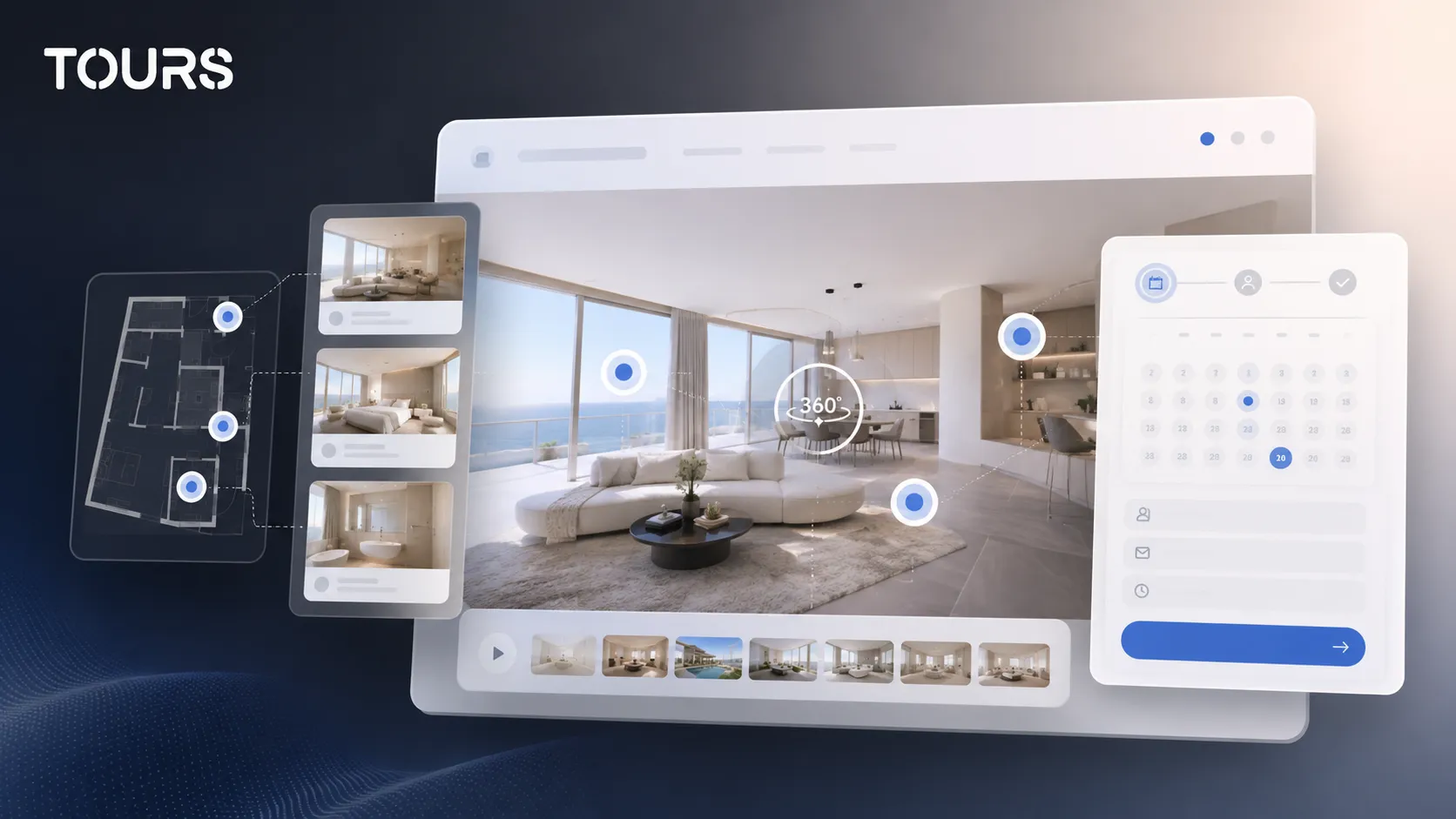

A booking widget on a website is the area where a visitor chooses a date, room, table, appointment or available resource without leaving the site. In Tours, the widget can be connected to the 360° virtual tour, so the person can view the space and send the request in the same flow.
Tours is a SaaS platform for 360° virtual tours with interactive points, website integration, bookings and usage statistics. In this use case, its role is simple: it turns the visual presentation on getours.app into a concrete commercial step without forcing visitors to look for the form on another page.
In short
- Use a booking widget on your website when you want visitors to request a room, table, viewing or appointment right after they understand the offer.
- The booking button on the site should be visible, but not aggressive; it works best when it appears next to the context that explains the space.
- The online booking calendar must be configured separately from the tour, with availability, rules and, when needed, manual approval.
- In Tours, bookings can be connected to the entire tour, to scenes, to scene groups or to interactive points through tags.
- The widget does not replace a PMS, POS, channel manager or CRM; it supports the website flow and reduces friction for direct requests.
What is a booking widget on a website?
A booking widget on a website is a form or interactive window that lets a visitor send a request related to availability. It can include a date, time slot, number of people, room, table, service, contact details and confirmation rules. Its value increases when it appears right next to the presentation of the space.
The difference from a simple contact page is context. The visitor is not filling out a cold form after losing the thread. They start the request immediately after seeing the room, table, showroom, apartment or event hall they care about.
When should you add a booking button to your site?
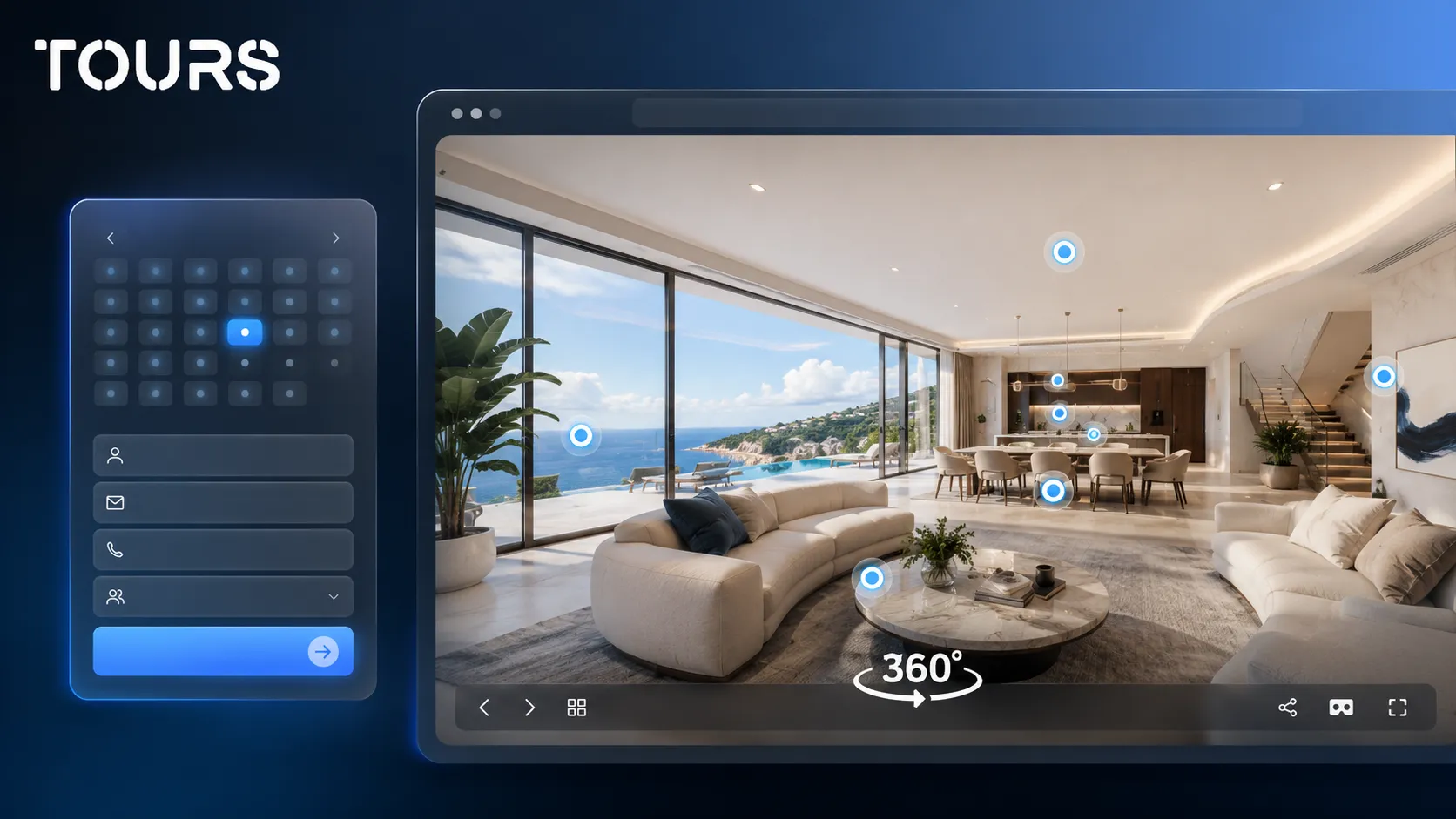
You should add a booking button to your site when the visitor's decision depends on the space, availability or trust. If they need to see the room, terrace, table, apartment, booth or hall before asking, the button belongs near the tour, not hidden in a generic menu.
- Hotels and guesthouses: requests for rooms, packages, amenities or room groups.
- Restaurants: reservations for tables, areas, private rooms, terraces or small events.
- Real estate: viewing appointments, quote requests or conversations about a specific apartment.
- Showrooms and retail: appointments for consulting, testing, demonstrations or guided visits.
- Event spaces: requests for available dates, capacity and room layouts.
Not every website needs a complex widget. For a simple offer, a short form may be enough. For multiple resources, time slots or teams, you need a clear calendar and rules that prevent overlaps, incomplete requests or wrong expectations.
How does the widget connect to the virtual tour?
The widget connects to the virtual tour through the action triggered by the visitor. In Tours, a booking can start at the level of the entire tour, a scene, a scene group or an interactive point. That makes it possible to create a different flow for each type of business.
| Connection | How it works | When it fits |
|---|---|---|
| Entire tour | Shows a global booking button for visitors who want to send a general request. | Simple websites, event spaces, showrooms or portfolio presentations. |
| Scene | Connects the request to a specific area in the tour, such as a room, hall or terrace. | When each area has separate commercial value. |
| Scene group | Connects multiple scenes to the same resource, such as a hotel room with a bathroom and balcony. | Hotels, guesthouses, apartments and residential projects. |
| Interactive point | Opens a booking window when the visitor clicks a table, area or marked item. | Restaurants, halls, booths, consulting or individually bookable resources. |
Interactive points can have their own calendar or share the same calendar through the same tag. For example, two different tables can be managed separately, while a terrace area can use a shared calendar. The important part is to decide the logic before you publish the tour.
What should you configure in the online booking calendar?
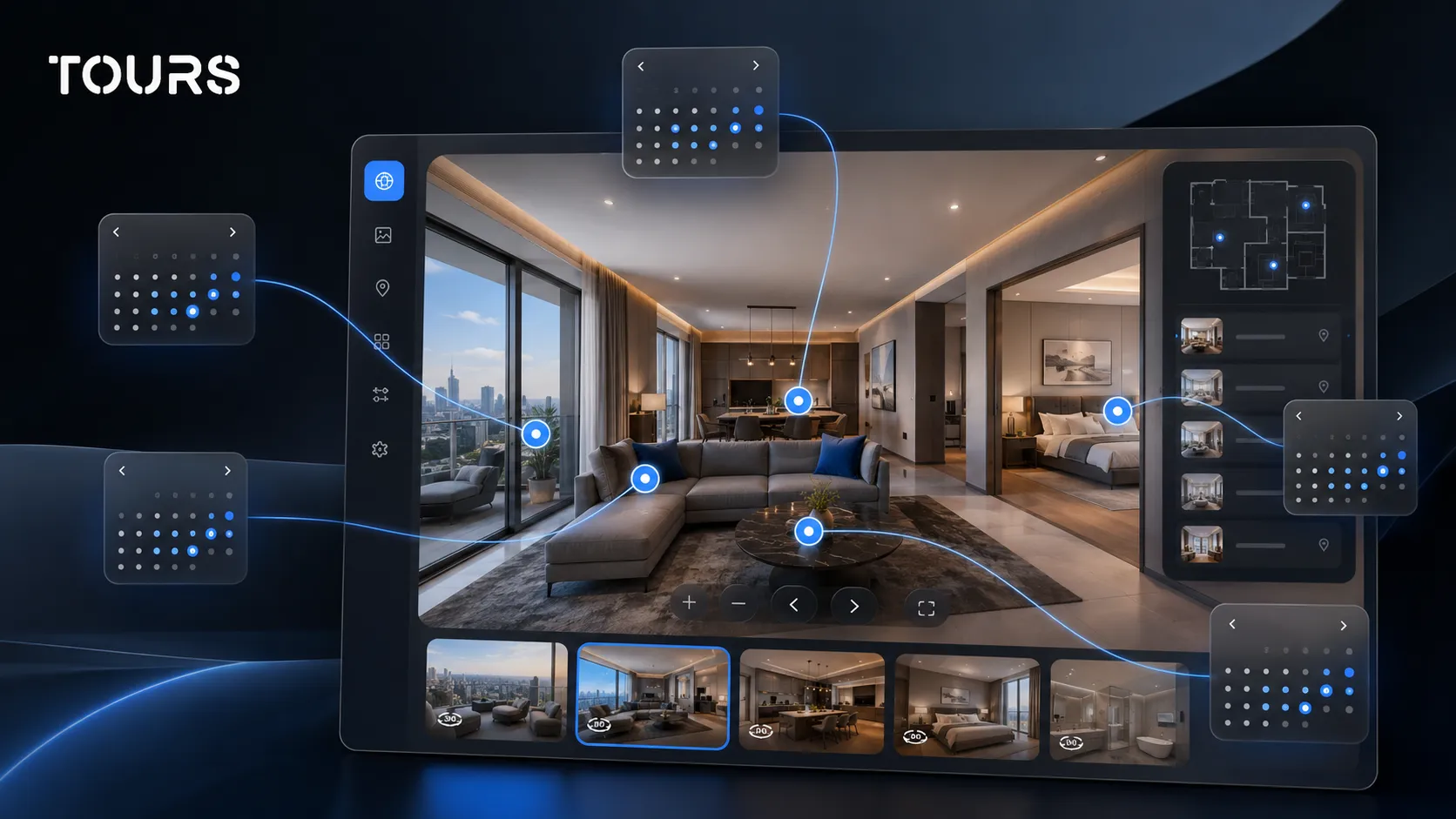
The online booking calendar must clearly define what can be reserved, when it is available and how the request is confirmed. Putting a form on the site is not enough. You need rules that match the business: overnight stays, flexible table time slots, appointments or requests with approval.
- Availability: days, hours, blocked time slots, exceptions and special periods.
- Algorithm: overnight stay, flexible table booking, appointment or rental.
- Confirmation: automatic acceptance or manual approval by a team member.
- Capacity: number of people, rooms, tables, resources or available time slots.
- Communication: confirmation message, booking code, instructions and contact details.
A good widget reduces repetitive questions, but it should not promise more than the team can deliver operationally. If bookings are confirmed manually, say that clearly. If there are cancellation rules or minimum advance time before booking, show them before the request is submitted.
How do you add the widget in Tours?
In Tours, the setup is split into two flows: you create the virtual tour and configure bookings separately. This separation helps because the 360° presentation and the availability rules are not the same thing. The tour explains the space, while Booking Manager controls the calendar and confirmation method.
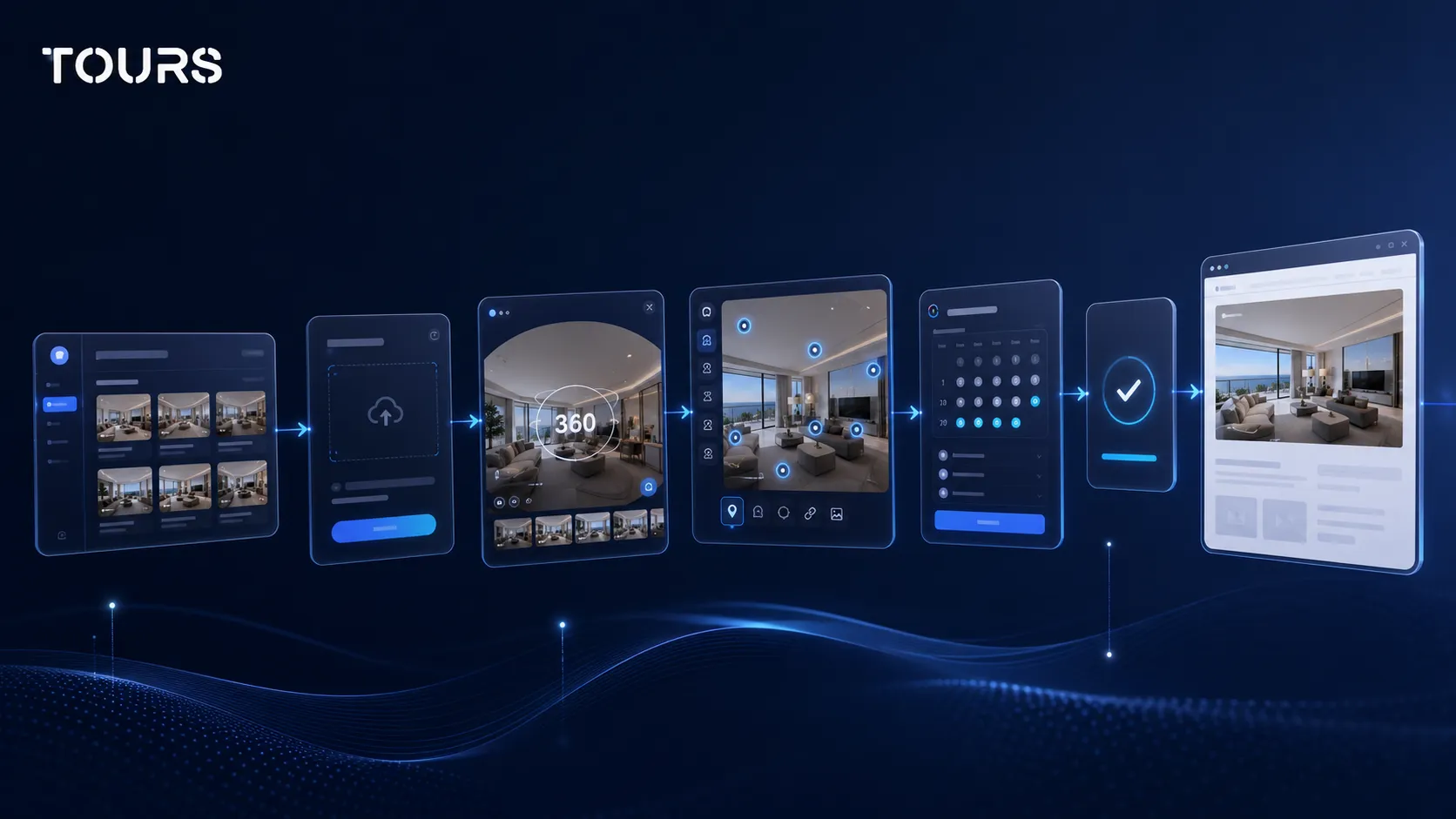
- Create an account on getours.app and go to the My Tours page.
- Click the button for a new tour and complete the creation window with a name and category; location, price and tags are optional.
- Upload the first 360° scene and give it a name, then continue to the 360° editor.
- Add scenes, groups, text, images, video, links, navigation and interactive points.
- Add internal tags to the interactive points that should become bookable.
- In Booking Manager, set availability, the algorithm, approval rules and the connection to the tour, scenes, groups or tags.
- Publish the tour, choose the visibility and wait for approval from a Tours moderator before the tour becomes public.
For the website, use the website integration code generated by the platform or the public tour page, depending on how your site is built. The widget can appear as a global button, as an action inside a scene or as a window opened from an interactive point.
Which setup works for hotels, restaurants and real estate?
The right setup depends on what the customer is booking. A hotel has rooms or room types, a restaurant has tables or areas, and a real estate agency has viewings or property requests. The widget should follow that logic instead of applying the same window to every business.
- For hotels and guesthouses, rooms work well as scene groups connected to availability.
- For restaurants, tables or areas can be interactive points with a separate calendar or a shared calendar through a tag.
- For real estate, a viewing request can be connected to the tour, a scene, a group or a relevant interactive point.
- For showrooms, the widget can open an appointment for consulting or a demonstration, not necessarily a classic reservation.
This is where a generic form and a system designed for spaces start to differ. If the user clicks a room, the request should be tied to that room. If they click a table on the terrace, the team should understand exactly what the visitor chose.
What should you check before publishing?
Before publishing, check the full path: the tour loads quickly, the button is visible, the calendar displays correctly, the request reaches the right person and the messages are clear. The simplest test is to place a test booking from a phone, like a real customer.
- Check on mobile that the booking window is easy to use.
- Test at least one request for each important resource type.
- Confirm that internal tags lead to the correct calendar.
- Control what happens when a day is blocked or a time slot is unavailable.
- Review confirmation text, customer messages and internal instructions for the team.
Do not publish a widget just because it looks good on desktop. Most problems appear on small screens, in rushed moments or when a customer does not understand the difference between a request and a confirmation. Operational clarity matters more than spectacular design.
How much does it cost and when does it make sense?
The cost makes sense when the widget reduces friction for direct requests and keeps you in control of the presentation. In Tours, plans start at €19/month for virtual tours, and the Pro plan with bookings starts at €59/month. You can test it free for 30 days, with no card required.
For a small business, start with a simple flow: one tour, one booking button, one calendar and a few clear rules. After you see what customers ask, you can add bookable interactive points, separate calendars or different scenarios for rooms, tables and appointments.
Frequently Asked Questions
What is a booking widget on a website?
A booking widget on a website is an interactive window or form that lets a visitor send a request related to availability. It can be simple, with a name and date, or more advanced, with a calendar, resource, number of people, time slot and confirmation rules.
Where should the booking button go on a website?
The booking button should appear next to the context that explains the decision: the virtual tour, room, table, apartment, hall or service being viewed. A global button can also exist, but the best flow appears when visitors can act immediately after understanding the offer.
Can the widget be connected to a 360° virtual tour?
Yes. In Tours, the widget can be connected to the entire tour, to a scene, to a scene group or to interactive points through tags. That way, the request can start from the exact area the visitor is viewing, not only from a general contact page.
Is the online booking calendar configured inside the tour?
Not directly in the tour creation window. In Tours, the tour and calendar are configured separately. The tour is created in the 360° editor, while availability, the booking algorithm and confirmation rules are set in Booking Manager, then connected to the tour, scenes, groups or tags.
Does every interactive point have its own calendar?
Not necessarily. An interactive point can have its own calendar, but multiple points can also share the same calendar through the same tag. For restaurants, this can mean individual tables or shared areas. For hotels, rooms usually work better as scene groups.
Does the booking widget replace a PMS or channel manager?
No. The booking widget on the website should not be treated as a replacement for a PMS, POS, channel manager, Booking.com, Airbnb or CRM. Its role is to capture direct requests in the context of the site presentation and support the existing operational process.
Can I use the widget only for requests, not automatic confirmation?
Yes. For many businesses, especially event spaces, restaurants or properties with variable availability, a request with manual approval is more appropriate than automatic confirmation. The visitor sends the intent, and the team accepts, rejects or asks for more details.
What should I test before publishing the widget?
Test the flow on mobile, check that each button opens the correct window, send test requests and review the messages received by the customer and the team. Also test edge cases: blocked days, unavailable time slots, incomplete details or resources connected to the wrong calendar.
When is the Tours plan with bookings worth it?
The plan with bookings is worth it when the virtual tour is not just a presentation, but part of the sales or appointment flow. If visitors need to choose rooms, tables, viewings, services or time slots, the connection between the tour and calendar can reduce the steps to a direct request.